Sending the event location to your car
Send the event location to your car with 2 taps
This feature is requires the Muzodo app to be installed on your phone.
** Note: This also assumes your group admin has entered the venue address in the event.
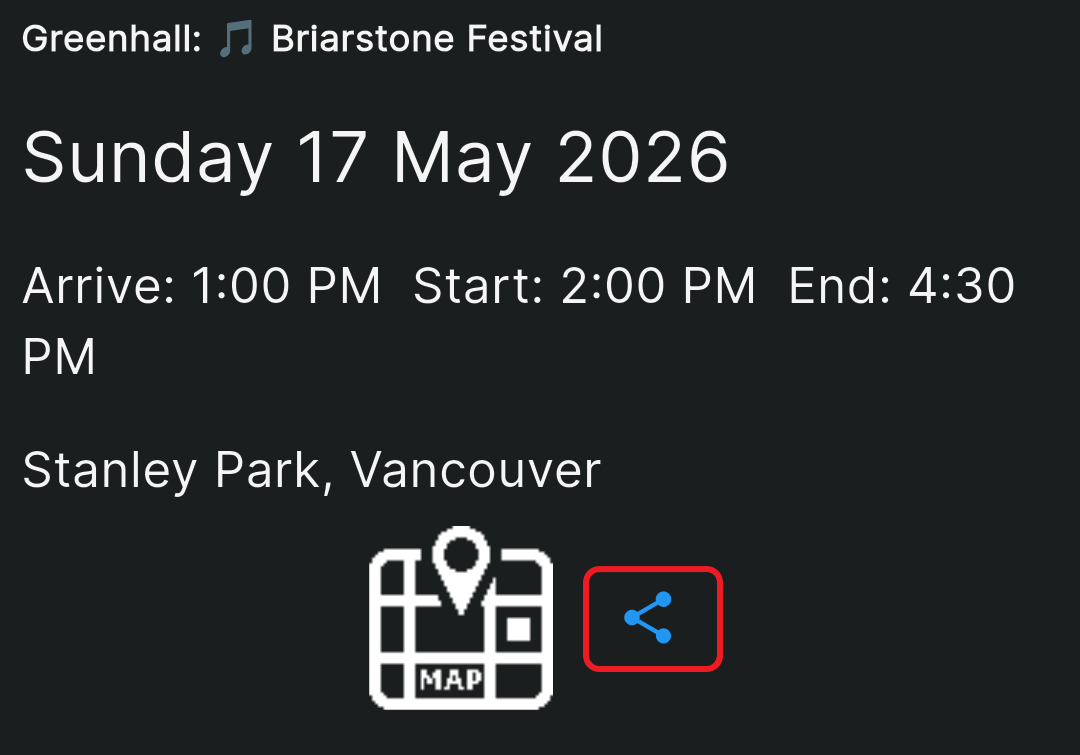
Sharing a location from Muzodo directly to your car makes it easy to start navigation to your next performance or rehearsal without typing the address on the vehicle’s screen. After opening the event in the Muzodo app, tap Share next to the map. If your car supports connected services, you’ll see an option such as Send to car or the vehicle’s companion app.
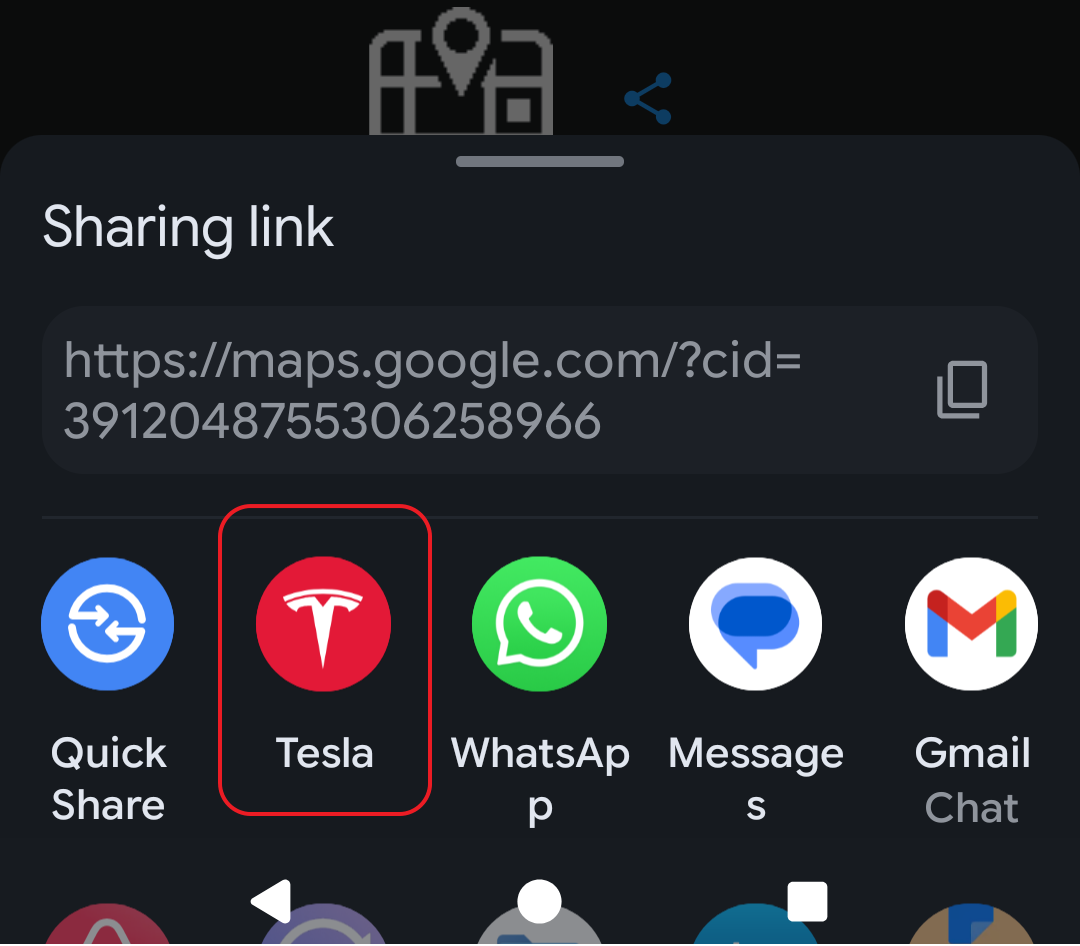
For example, with a Tesla Model 3 or Tesla Model Y, you can share the location to the Tesla app. When you get in the car, the destination appears automatically on the navigation screen, ready for you to start driving.
Many other vehicles support similar features through their connected-car apps. For instance, drivers of Ford Mustang Mach‑E can send destinations through FordPass, and BMW i4 owners can use My BMW to push locations to the car.
In these cases, the process is similar: tap Share, select the car’s app and the address is transmitted to the vehicle. Once the car starts or the infotainment system connects, the navigation system loads the shared destination so you can begin driving immediately.
In summary:
- Open the Muzodo app
- Tap your upcoming event
- Tap Share
- Tap your car's app
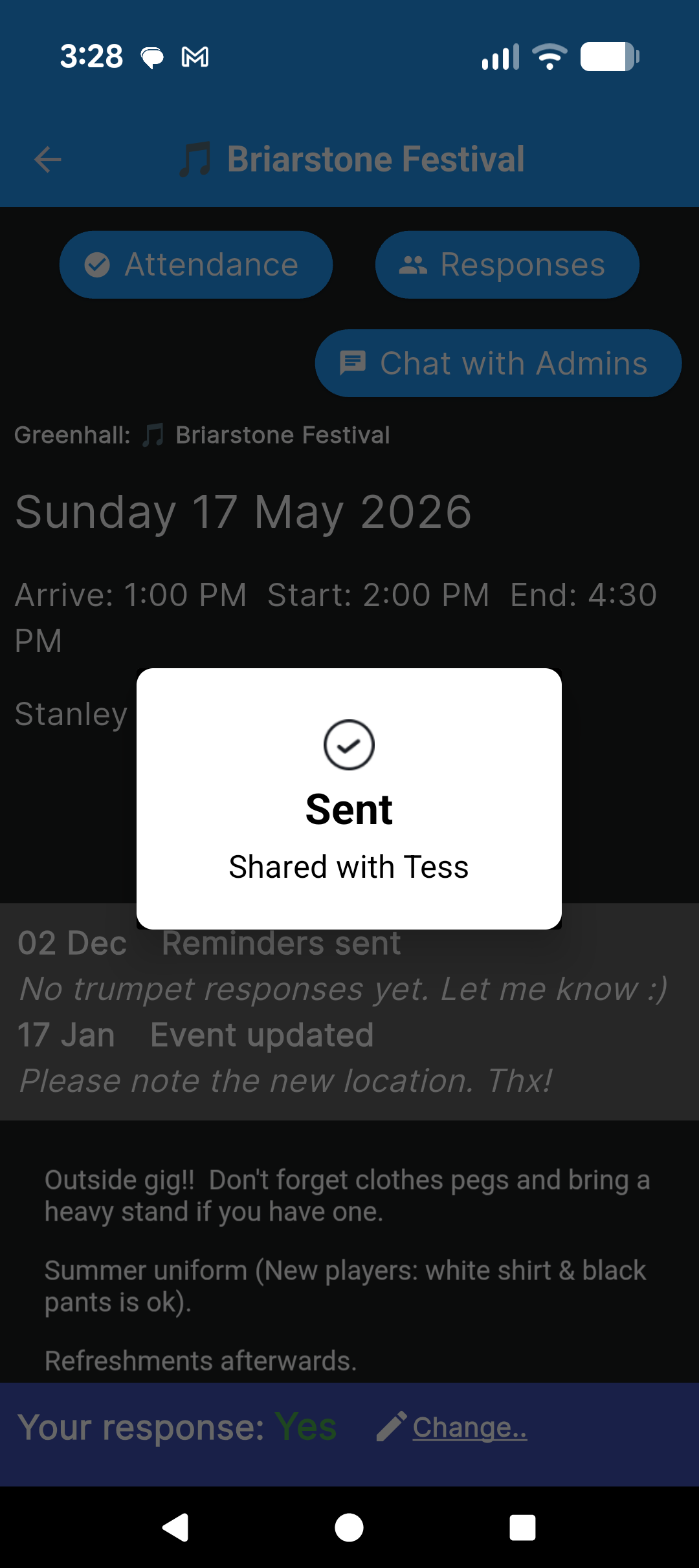
- Shared